
New World Scheduler Congregation Sharing is a feature that automatically shares and synchronizes data between approved brothers, allowing all appointed brothers to quickly and easily keep up-to-date with what is happening in the congregation.
Congregation Sharing is fully supported by both NWS Desktop and NWS Mobile, but must be setup using NWS Desktop.
Congregation Sharing does not store sensitive or confidential information online, therefore is fully compliant with sfg.
- Please see How does Congregation Sharing work? for more information about how the Congregation Sharing works
- Please see Congregation Sharing Problems if you have any problems with Congregation Sharing
- Please see Congregation Sharing Questions if you have any questions about Congregation Sharing
Enable Congregation Sharing
- Note: Only ONE elder should enable and setup Congregation Sharing, and they must use NWS Desktop to this.
- Open NWS Desktop
- Click Persons > Add Person and add yourself
- Ensure you are set as an Elder and your Email 1 field exactly matches your Email Address in Me view Alerts
- Note: See Identify yourself for more information
- Click Congregation > Congregation Sharing
- Carefully read all the information, so you fully understand how Congregation Sharing works. Tick to confirm you understand.
- Select your Sharing Region
- North America
- South America
- Europe
- Asia Pacific
- Africa
- Click Enable Congregation Sharing
- Check all the information is correct and click Yes
Create a Congregation Sharing Password
- Create a Congregation Sharing Password
- Click Create
Sharing Password Requirements
- The password must be given to other brothers in your congregation so they can connect
- The password must be 12 characters or longer, and include lowercase, uppercase and numbers
- As this password is used to encrypt your data, we recommend choosing a secure password. The best passwords are long phrases easy to remember, e.g. Congregation@NewYork2023 or PublicWitnessingIsGreat!543 or DeathWillBeNoMore21:34
Identify yourself
- Select yourself from the list of persons
- Click OK
Identify problems
Note: If you do not show up in the list, or cannot identify:
- Click Persons > Add Person and add yourself to New World Scheduler
- Ensure you are set as Person > Spiritual > Elder
- Ensure your Person > Information > Email 1 field exactly matches your Email Address shown in Me view Alerts. If not, edit them to match.
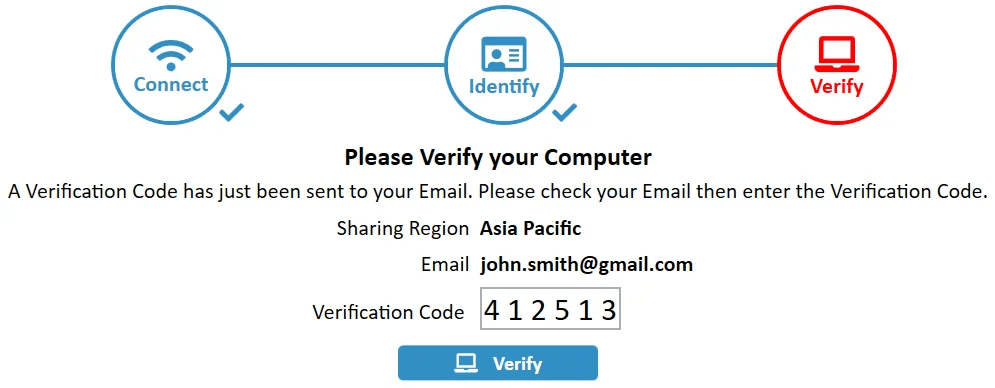
Verify your device
- A Verification Code will be automatically sent to your Email
- Check your email to find your Verification Code
- Note: This should arrive within 60 seconds. Sometimes it may be in your SPAM or JUNK folders
- Enter the Verification Code
- Click Verify
Verification problems
If you have problems verifying your email, please try the following:
- Check your SPAM or JUNK folders
- Double-check your Email address is exactly correct
- Click Resend Verification Code
- Create a new email account that will accept emails. We recommend Gmail.
- Note: Some email domains will not accept email verifications due to MailPolicy violations. Hotmail or Outlook also tends to block a lot of emails. There is nothing we can do about this. We do not control the policies of other email providers. Either contact your email provider and ask them why they are blocking our emails, or just use Gmail.
- Wait 24 hours and try again. Sometimes email servers go down temporarily.
- After you have tried all of the above, please Contact Us
Next Steps
Congratulations! You have now setup Congregation Sharing.
- See Congregation Sharing Overview
- Add some Shared Persons
Connect to your Congregation
If Congregation Sharing has already been setup by another brother, or you wish to connect with another device, please see Open Congregation from Sharing